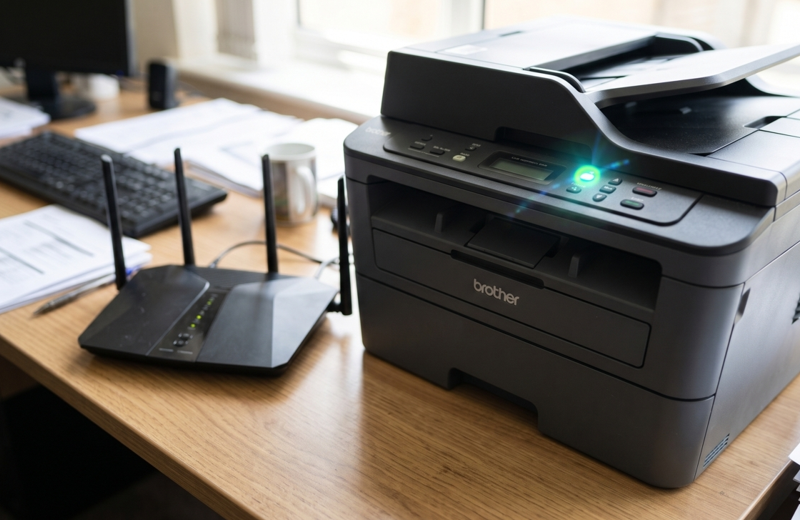

You set up your new Brother printer. Or your old one worked fine yesterday. Now it won’t join your Wi-Fi, and the little wireless light just keeps blinking.
Frustrating, right? The good news is that this is rarely a broken printer. It’s usually a small setting, a weak signal or a typo in the password. Let’s fix it step by step.
Why Won’t It Connect?
A few things cause this most often:
- A weak Wi-Fi signal
- The wrong network name or password
- A router that only offers a 5 GHz network
- The printer is too far from the router
- A recent router restart or settings change
- Old printer firmware
- A glitch in the printer’s network settings
Most of these take a minute to check.
Before You Start
Do three quick things first.
- Make sure the printer is switched on and has no error message.
- Check that your other devices can get online with the same Wi-Fi.
- Move the printer closer to the router if you can.
These simple checks solve more cases than you’d expect. If you’re also seeing “Replace Toner” or other messages, sort those out too. A wrong or poor-quality cartridge can confuse a printer. Good Brother toner cartridges that match your model help keep things running smoothly.
7 Fixes to Try
Fix 1: Restart Everything
Switch off the printer, the router and your computer. Wait a minute. Switch on the router first. Then the printer. Then your computer. Give it a few minutes to settle. It sounds too simple. It works a lot.
Fix 2: Check the Wi-Fi Band
Many Brother printers connect only to 2.4 GHz Wi-Fi. Some routers run 2.4 GHz and 5 GHz under one name, or only 5 GHz. If your printer can’t see your network, check your router settings. Make sure the 2.4 GHz band is on. Check your printer’s manual to see which bands your model supports.
Fix 3: Check the Network Name and Password
Passwords are case-sensitive. One wrong letter and the printer won’t join. Re-enter it slowly. Also make sure you picked the right network. Offices and homes often have a main network and a guest network, and it’s easy to pick the wrong one.
Fix 4: Run the Wireless Setup Wizard Again
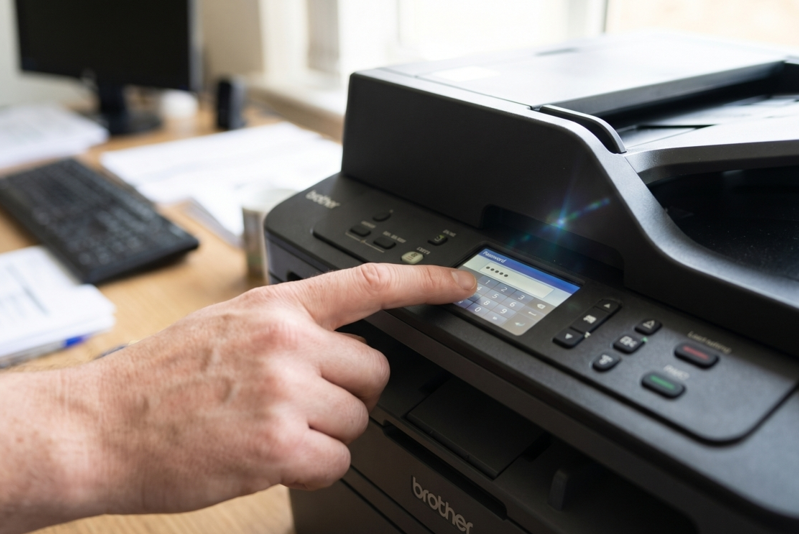
On the printer’s control panel, open the network or wireless settings. Choose the setup wizard. Pick your network, enter the password and wait for it to confirm. Some models also support a WPS button on the router. Check your manual for the exact steps on your printer.
Fix 5: Print a WLAN Report
Most Brother printers can print a wireless report from the settings menu. It shows an error code that points to the problem. Wrong password. Weak signal. Router blocking the device. Look up the code on Brother’s support website for your model.
Fix 6: Reset the Network Settings
If nothing else works, reset the printer’s network settings from its menu. This clears old and damaged settings. Then run the wireless setup again from the start. You’ll need to reconnect, but you’ll have a clean slate. If the printer still can’t join after a full reset, the wireless hardware may be the problem. A professional Brother printer repair in Dubai service can test the Wi-Fi module and fix it properly.
Fix 7: Update the Firmware and Driver
Old firmware can cause connection problems. Download the latest firmware and driver for your exact model from Brother’s support website. Install them, restart the printer and try connecting again.
Keep It Connected
Once it’s working, a few habits help:
- Keep the printer close to the router
- Give it a fixed (static) IP address in your router settings
- Reconnect it after you change your Wi-Fi name or password
- Avoid putting it near microwaves or thick walls
- Restart it once a week in a busy office
- Update the firmware every few months
What If You Can’t Fix the Wi-Fi?
Try a cable. Plug in USB or Ethernet if your model has it. If it prints fine over the cable, the printer is healthy. The issue is only the wireless side. That’s useful to know. You can keep working while you sort out the rest.
Mistakes to Avoid
- Typing the password too fast
- Choosing the guest network by accident
- Resetting the printer before trying the simple fixes
- Placing the printer far from the router
- Ignoring firmware updates
- Opening the printer yourself
When Should You Get Extra Help?
Ask a technician if:
- The printer won’t join any network at all
- The wireless light never turns on
- The printer drops the connection every few minutes
- The control panel freezes or shows unclear errors
- You hear clicking or grinding noises
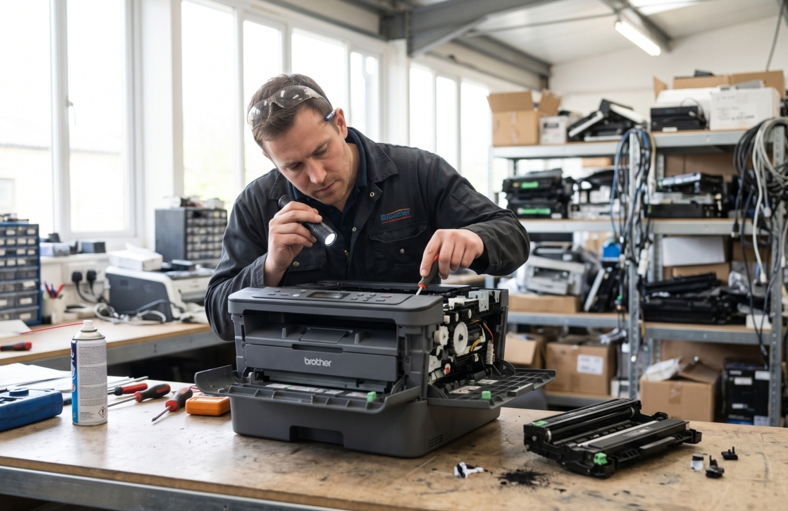
These signs can point to a faulty wireless module or a problem on the main board. Please don’t open the printer yourself. Small parts break easily.
Final Thoughts
A Brother printer that won’t connect to Wi-Fi is annoying, but it’s usually a small fix. Restart everything. Check the band. Check the password. Run the setup again. Most people are connected again in ten minutes. And if the printer still won’t join, get it checked. Fixing the real problem beats fighting with it all afternoon.